
Hi! I’m Aya Ishibashi from the Moments editorial team 🌱
“I want to collect guests’ photos with a QR code, but how do I make one, and where do I put it?” We get this question a lot.
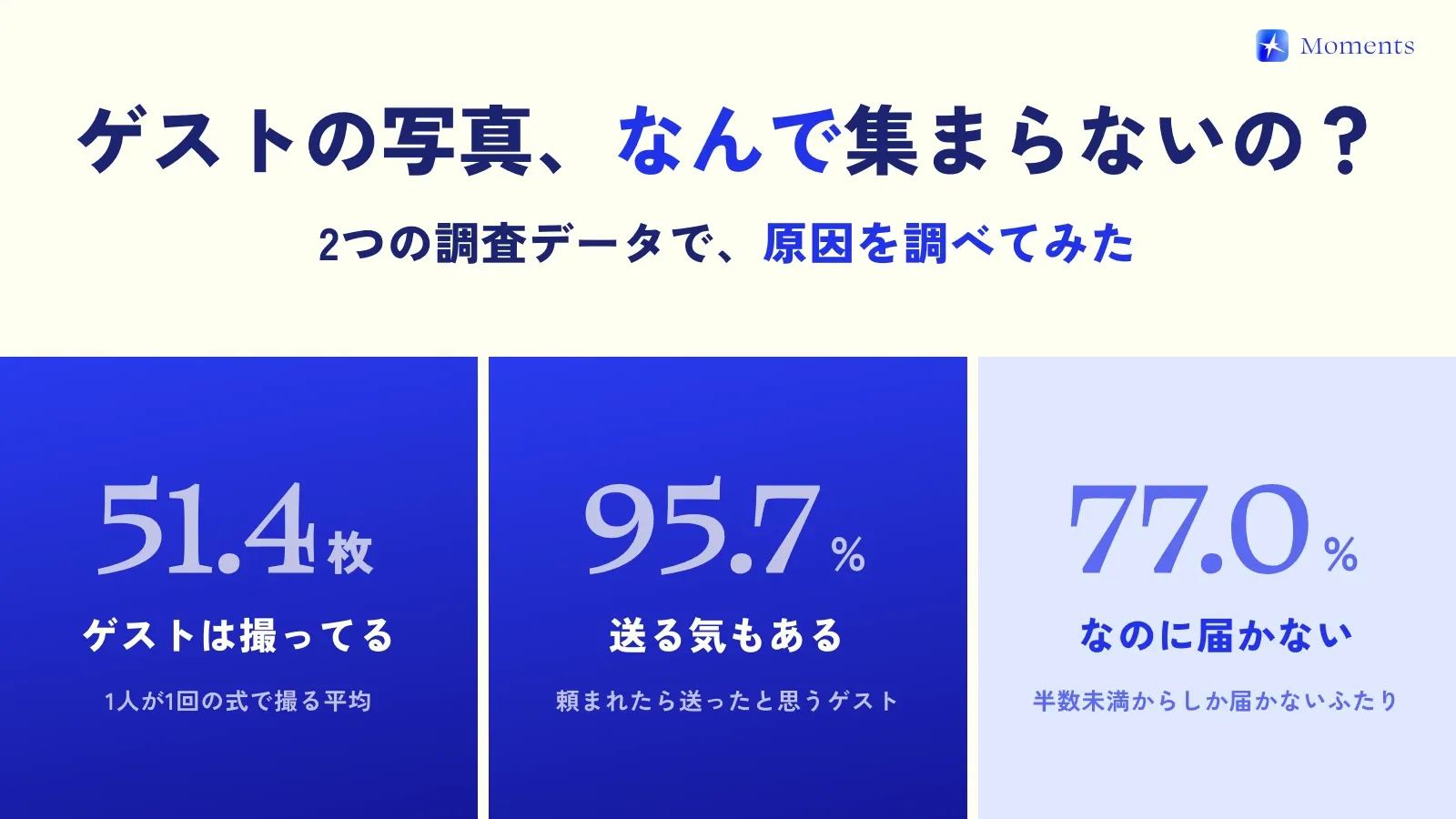
The great thing about a QR code is that guests can get started just by pointing their phone camera at it. In one survey, 43.4% of guests gave reasons related to the steps involved in sending photos, and 26.3% said they would stop sending photos if asked to sign up for an app (ParaLux Inc., 2026). The fewer the steps, the more photos you collect.
In this post, I’ve gone through it step by step: choosing where the QR code leads, making it, where to put it, and the message to go with it ✍️
First, decide where the QR code leads
A QR code is just the entrance. Where guests end up after scanning it decides how much effort it takes them and the quality of the photos you collect.
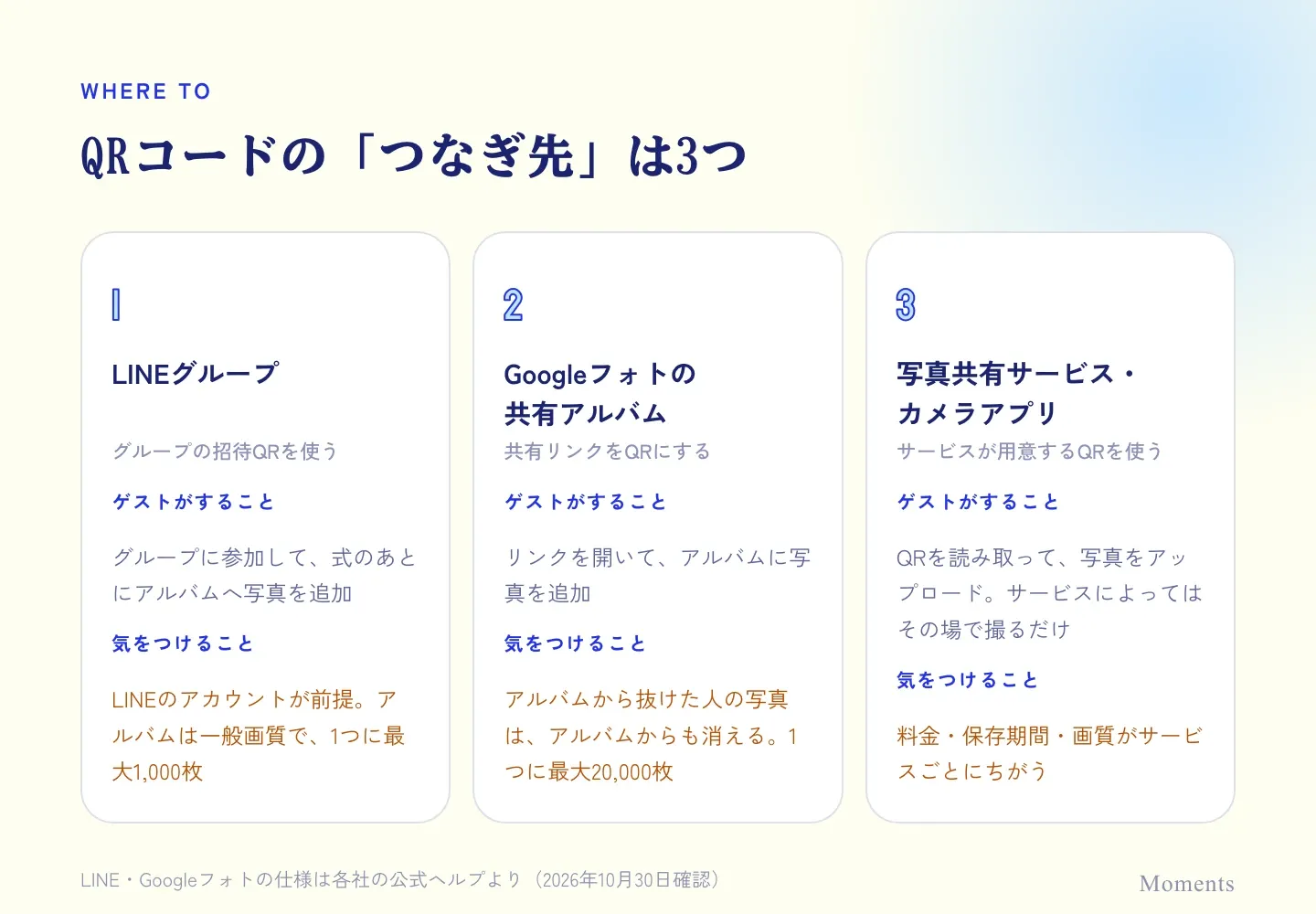
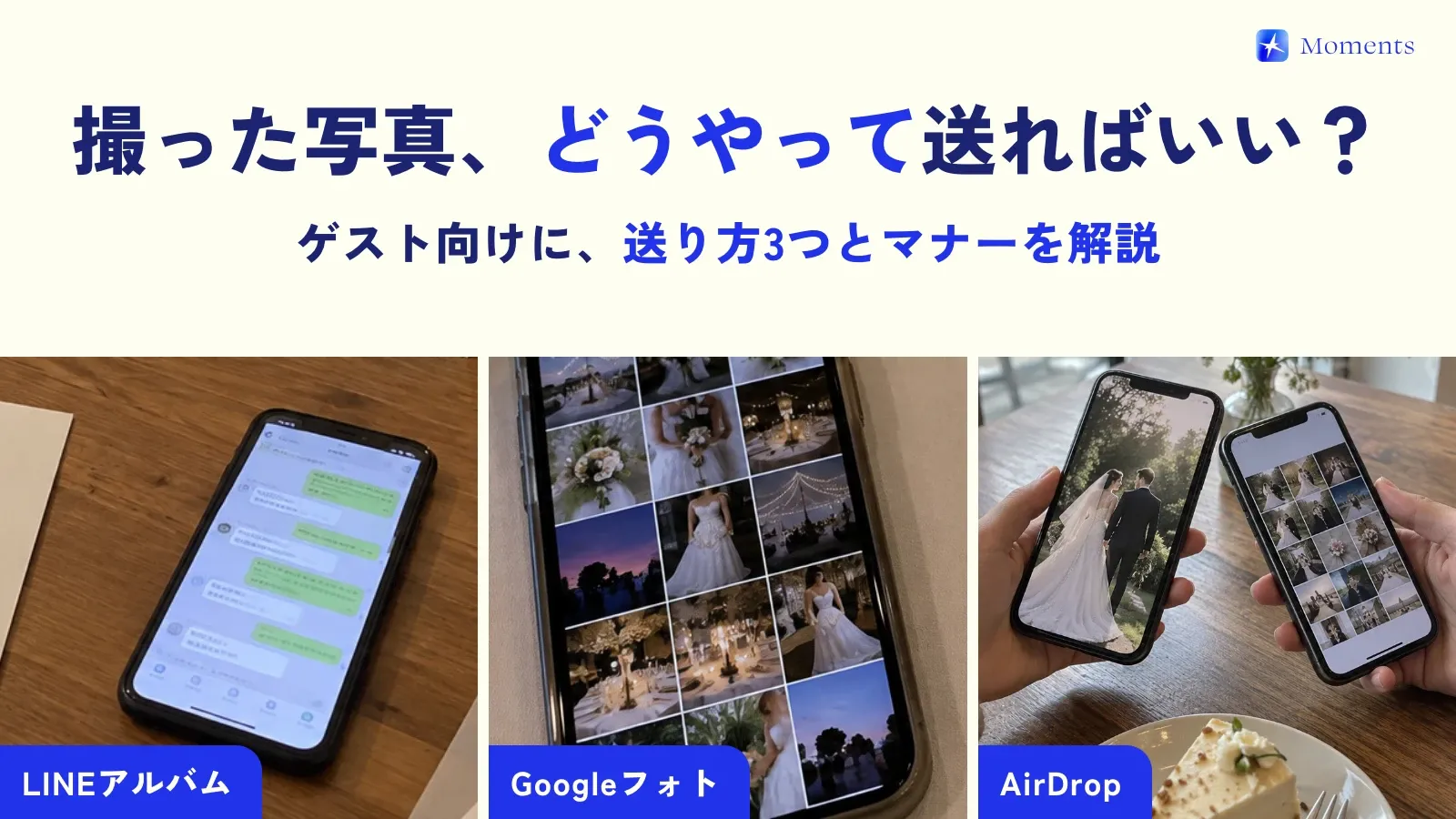
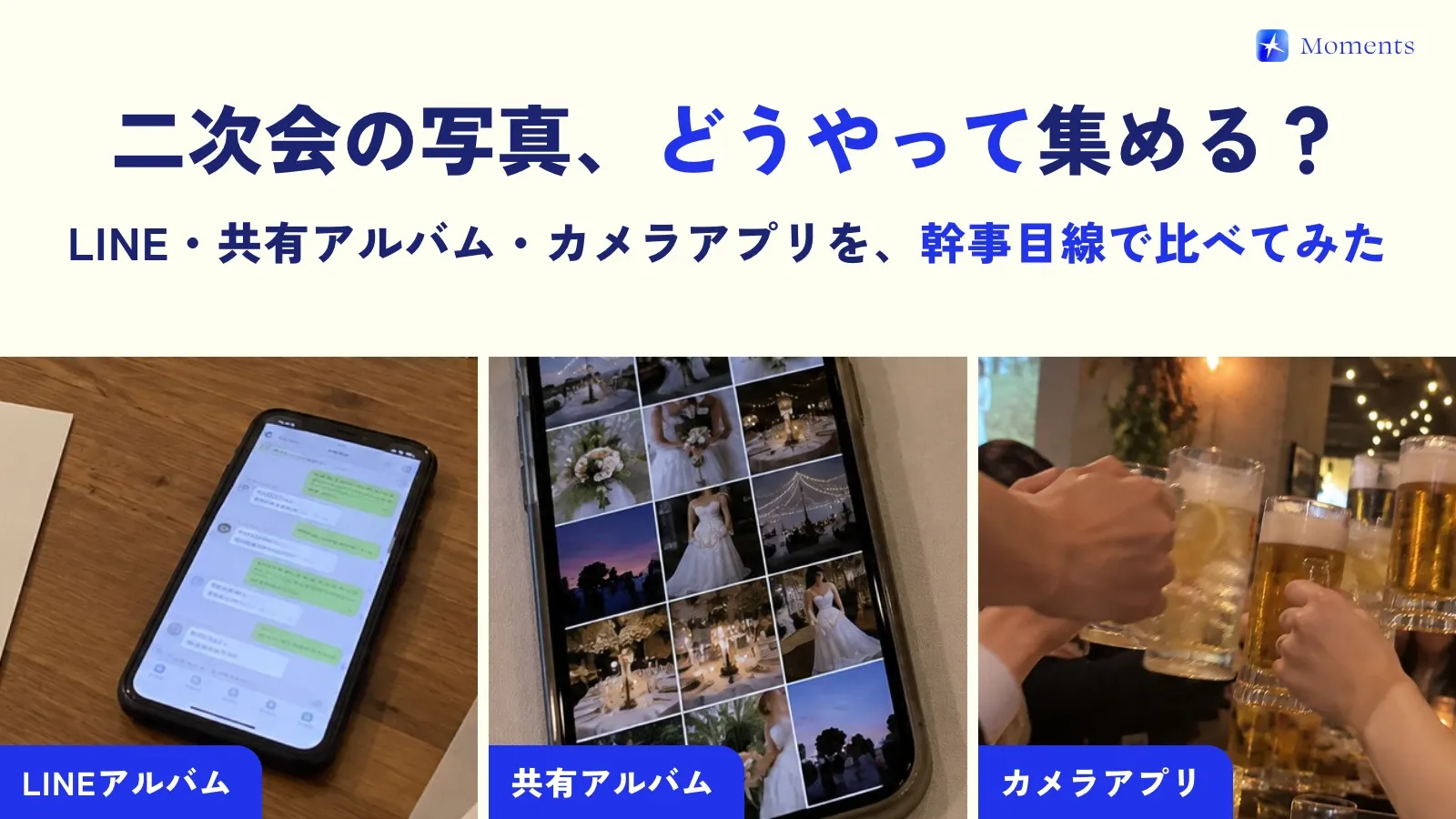
1. LINE group
You put out the invite QR code for a group on LINE (the messaging app most people in Japan use) and have guests join. After the wedding, guests add their photos to the group’s album.
- Guests need to have a LINE account
- Album photos are in standard quality (original quality is only for LYP Premium members, LINE’s paid membership)
- Each album holds up to 1,000 photos
For a small wedding with mostly friends, it’s the easiest option.
2. Google Photos shared album
You turn the shared album’s link into a QR code. If you turn on “Collaborate” for the album, guests who open the link can add photos.
- Each album holds up to 20,000 photos
- Quality is either “Original quality” or “Storage saver”
- Photos added by someone who leaves the album are removed from the album too. To be safe, the couple should save copies after the wedding
3. Photo-sharing services and camera apps
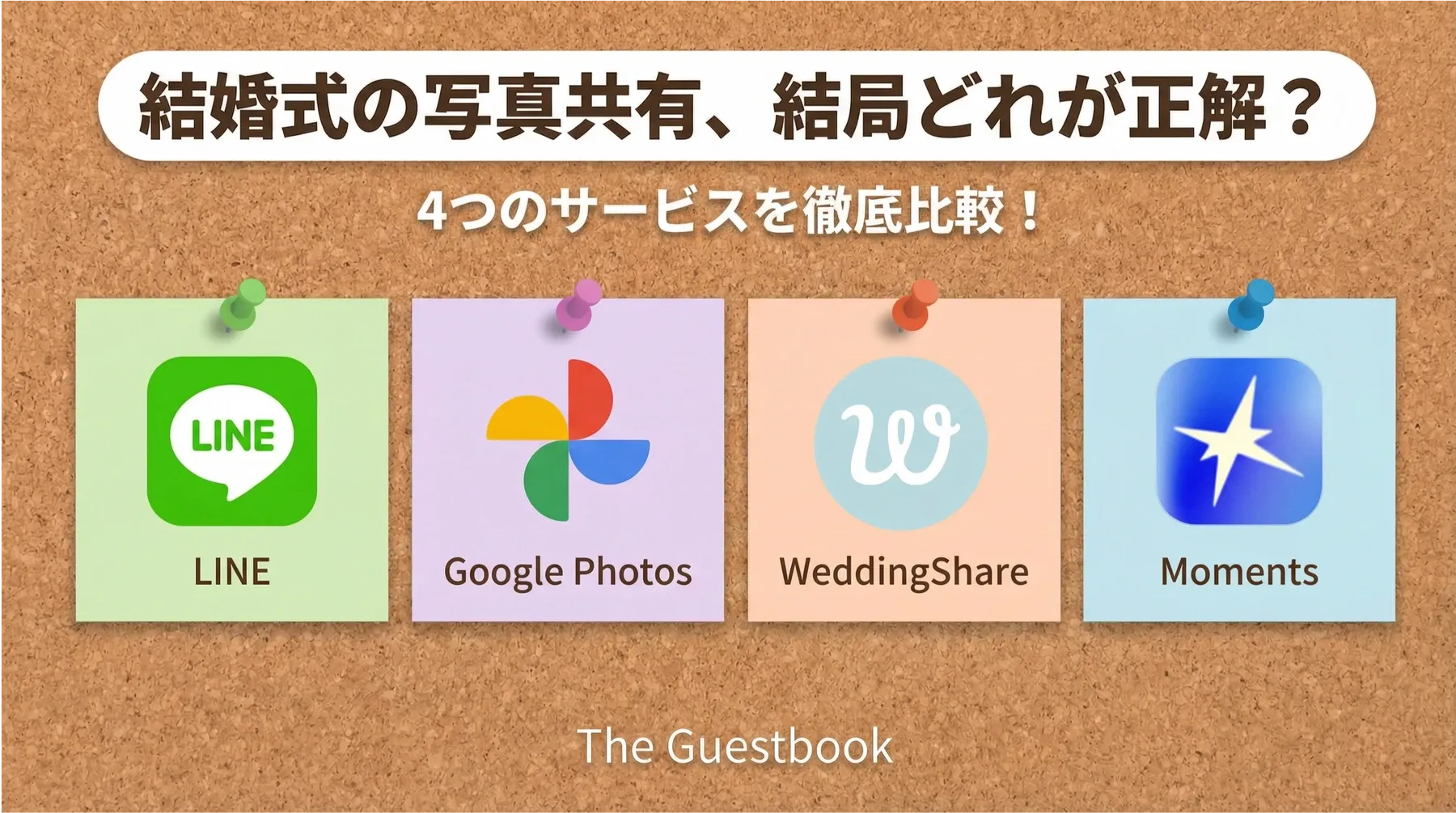
Many wedding services give you a QR code when you create an album. With some, guests upload their photos afterward; with others, the photos guests take on the spot after scanning the QR code go straight to you. Price, storage period and quality differ from service to service, so take a look at our comparison page.
LINE and Google Photos details are from each company’s official help pages (checked October 30, 2026)
How to make the QR code
Once you’ve decided where it leads, all that’s left is turning it into a QR code.
- Get the link for the destination: for LINE, the group invite; for Google Photos, the shared album link; for a service, the share link you got when you created the album
- Turn it into a QR code: if the service provides a QR image, save that. If you only have a link, you can make one with “Create QR code” in Chrome’s share menu or on a QR code generator site
- Add it to your printed items: place it on place cards, table cards, the reception sign and so on
- Test scanning it: scan the printed version with both an iPhone and an Android phone
Some QR code generator sites route the code through a different address first. If that address stops working later, guests won’t be able to open your link, so we recommend choosing one that turns your original link into a QR code as is.
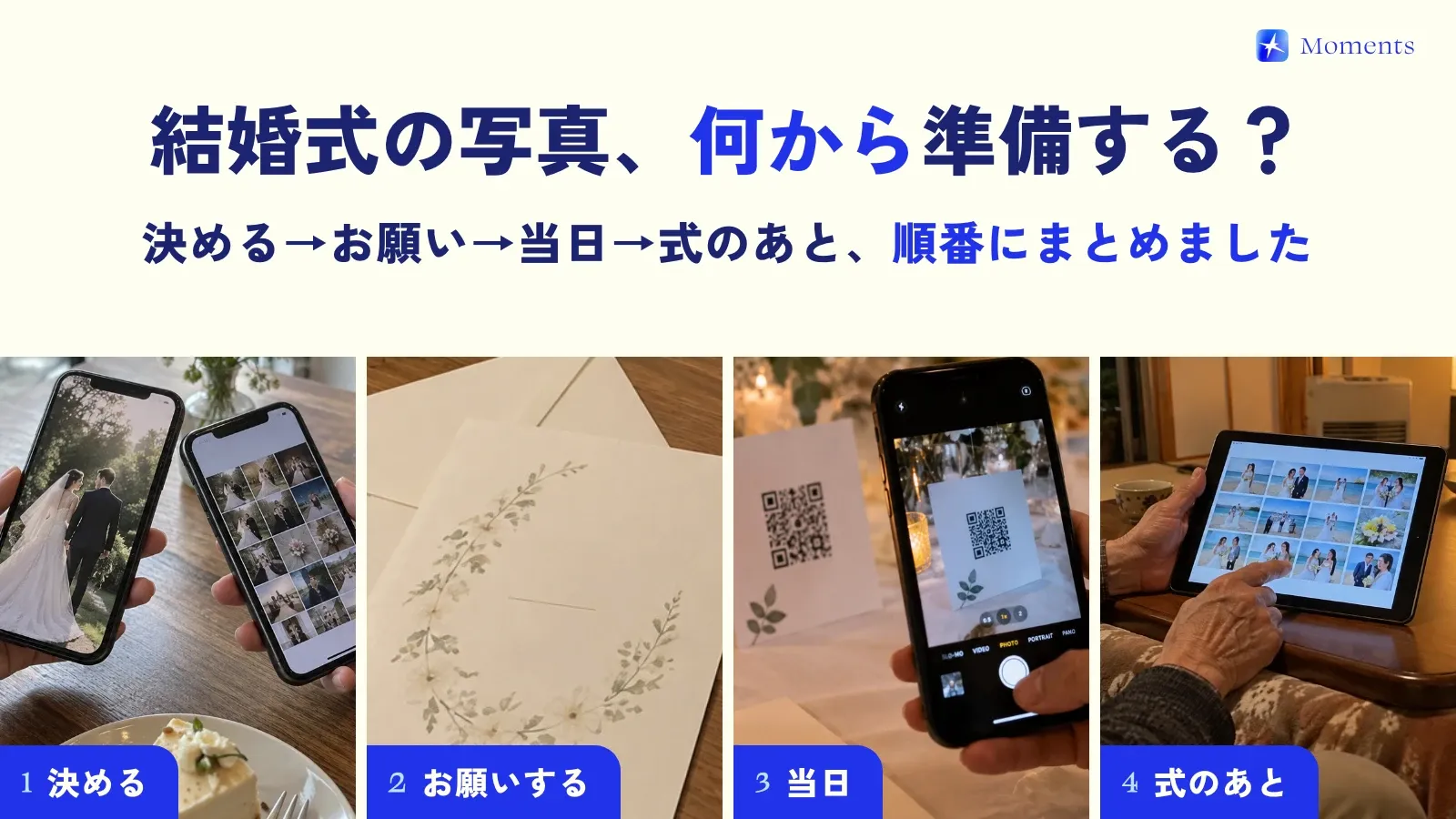
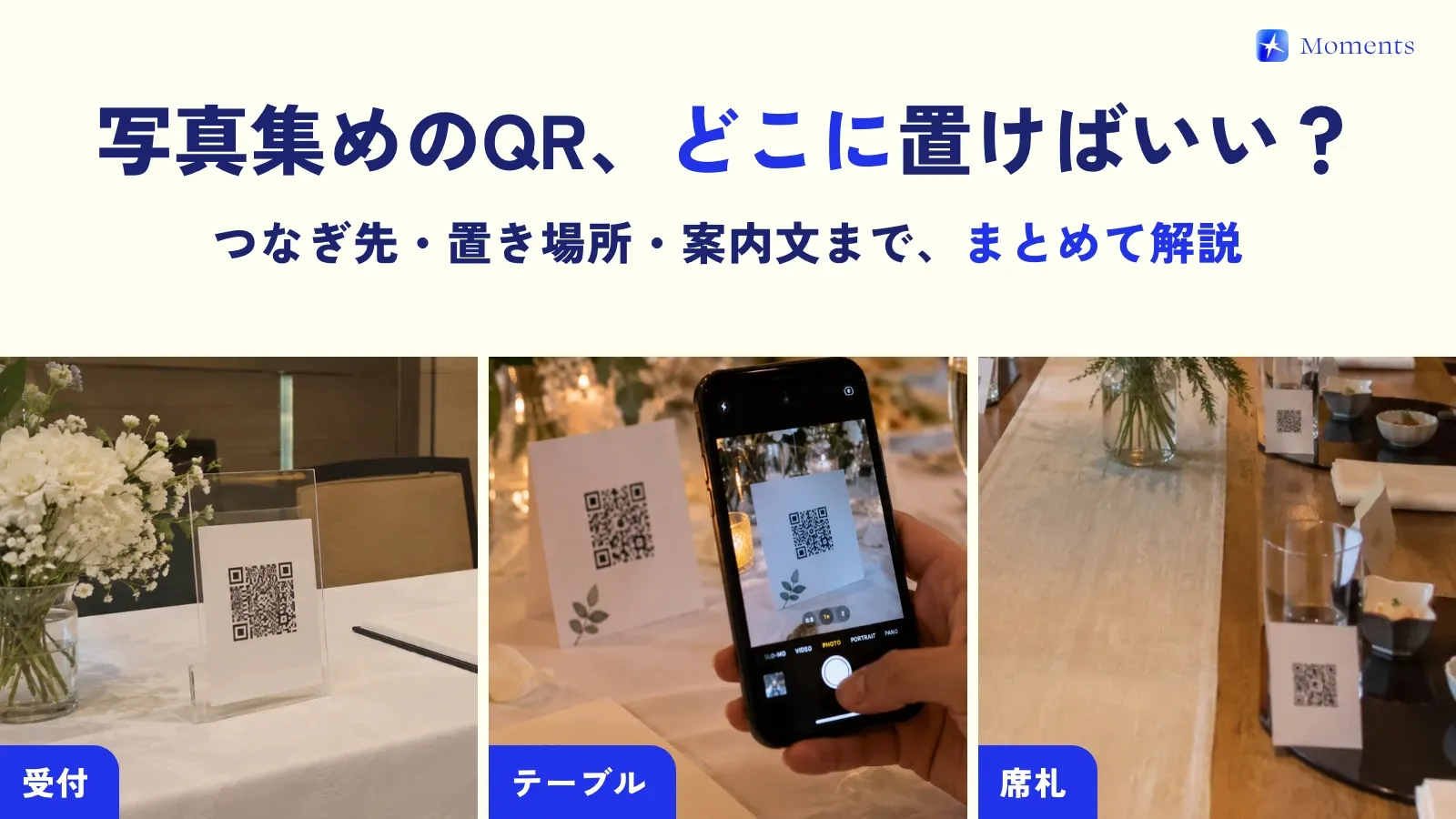
Place the QR code along the path guests take
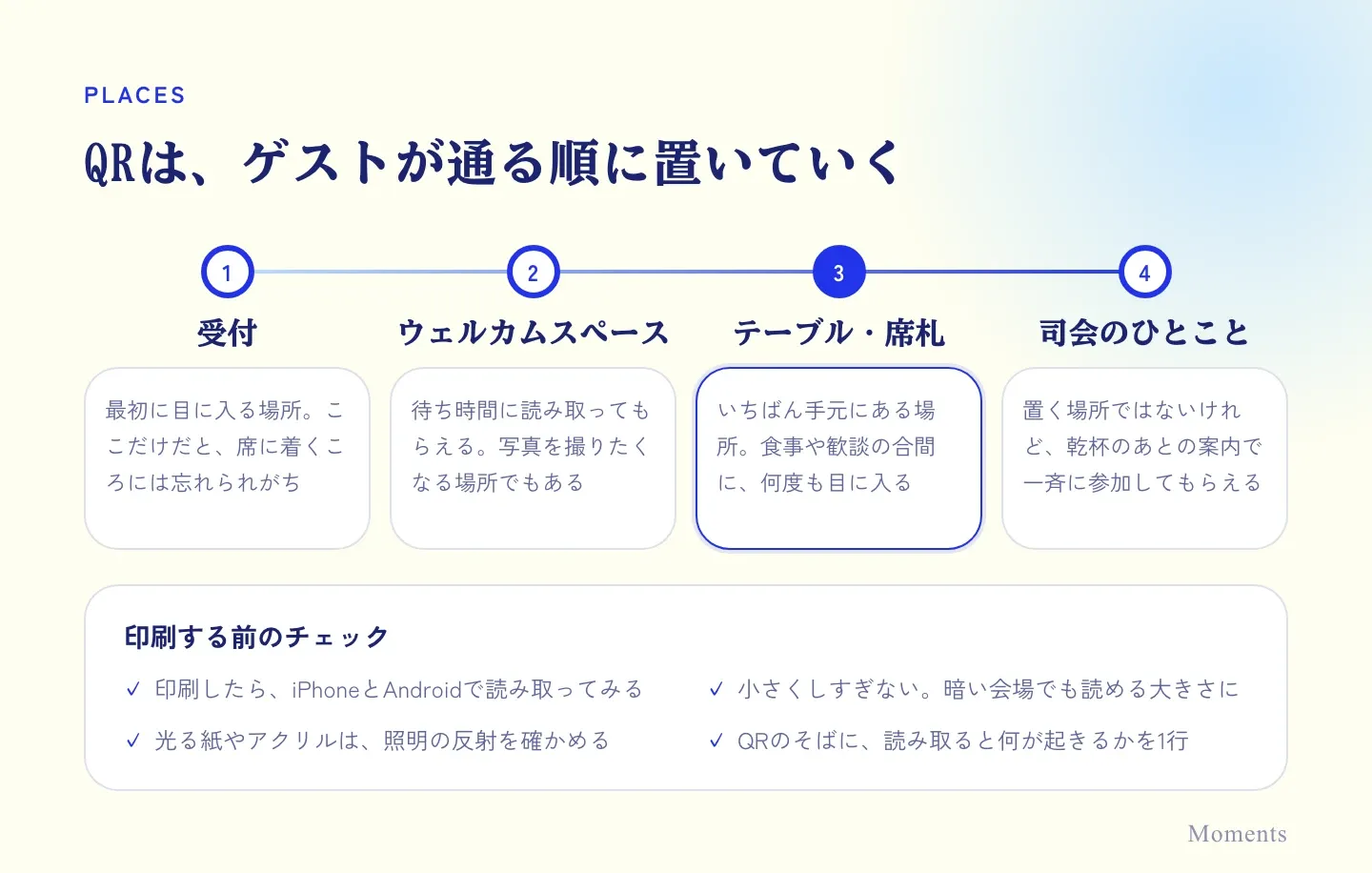
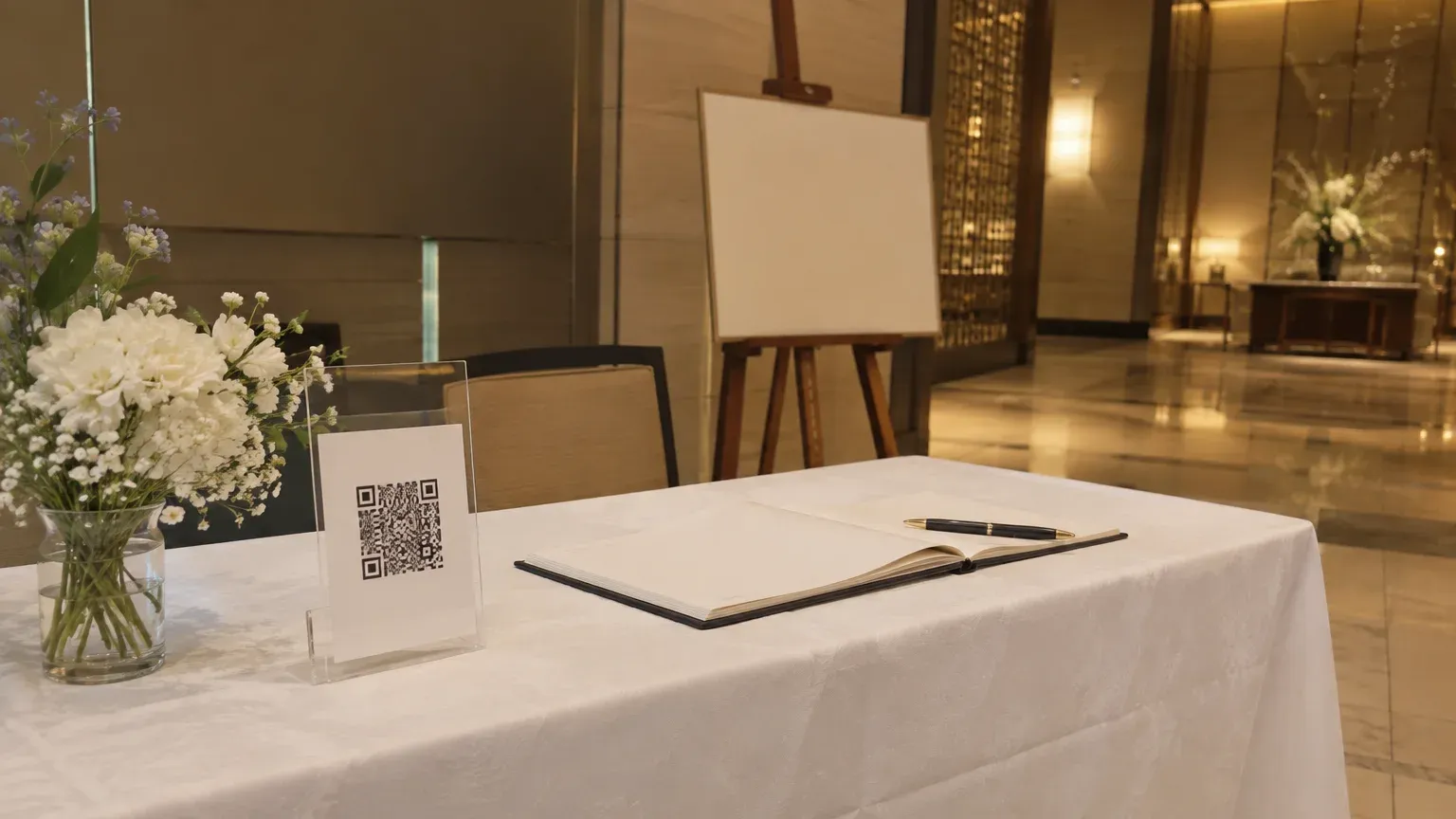
If you only put one at the reception desk, guests tend to forget about it by the time they sit down. The trick is to have it catch their eye several times, at each place they pass.
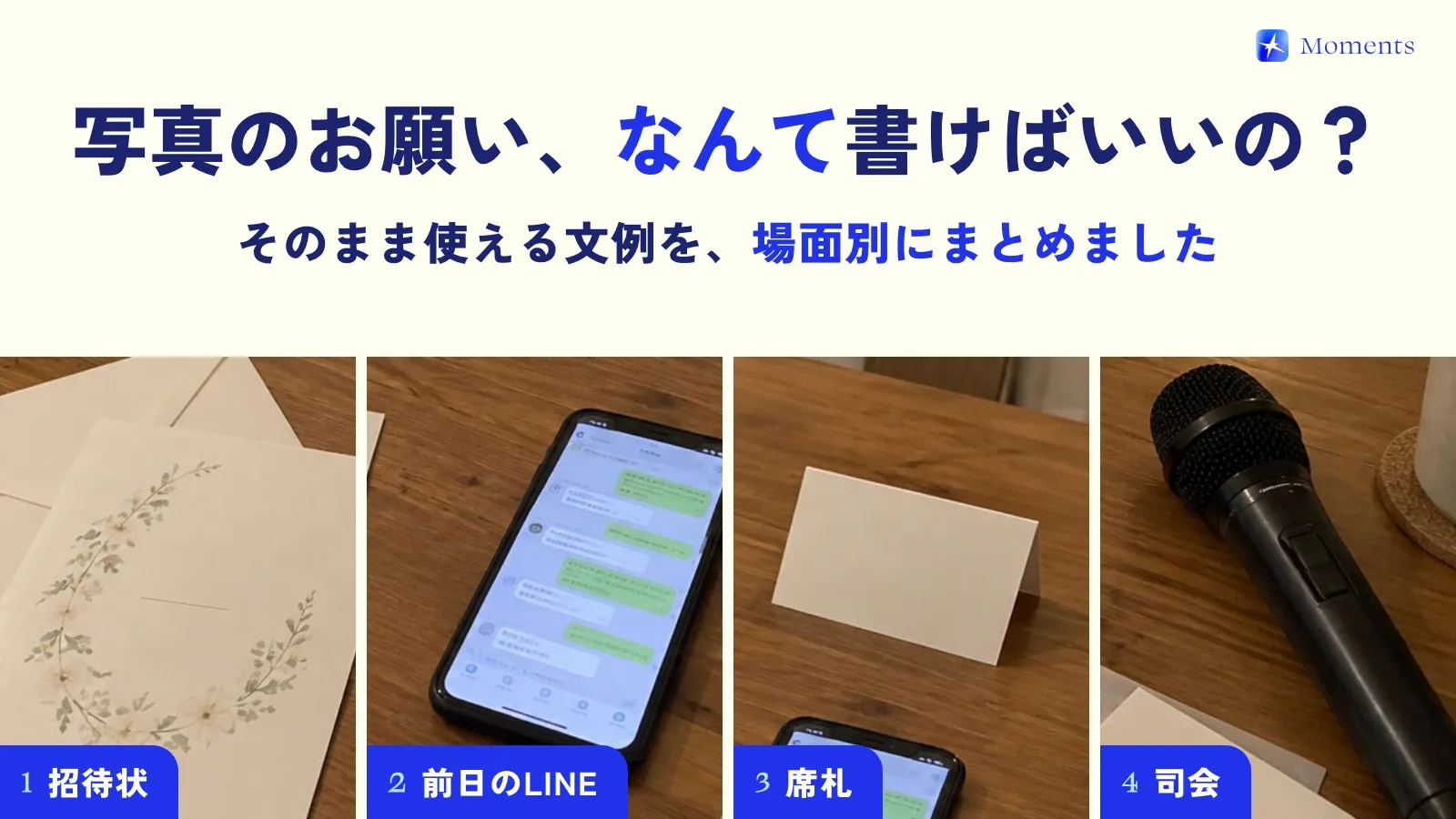
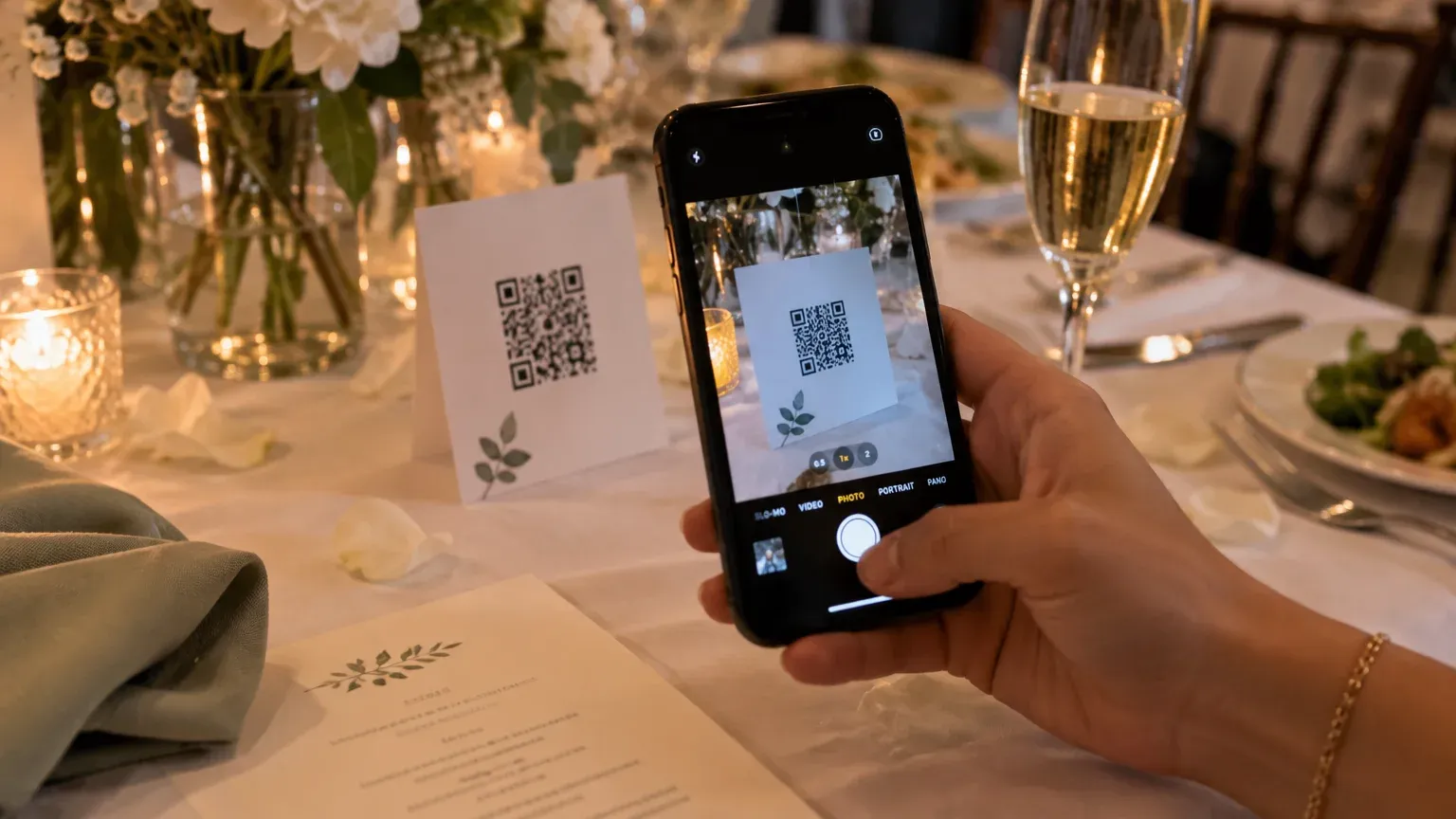
The spot that works best is right in front of guests, on the tables or place cards. They’ll see it again and again between courses and conversations, so it’s easier for them to think, “Oh, I’ll take a photo.”
What to write next to the QR code
A QR code on its own just leaves guests wondering, “What’s this for?” Add one line that says what happens when they scan it.
For the reception desk or welcome area:
We’re gathering everyone’s photos from today in one album. Scan the QR code and join in.
For tables and place cards:
Scan the QR code to open our shared photo album. We’d love it if you added the photos you take.
For the emcee’s announcement:
The QR code on each table opens an album for collecting today’s photos. Just scan it with your phone’s camera to join. Please capture as much of today as you can, through your own eyes.
You’ll find many more example messages for different moments in our collection of photo request messages.
Common snags
- It won’t scan: Usually the QR code is too small, the lighting reflects off it, or the venue is too dark. Print it a bit larger, on paper that doesn’t reflect much
- It scans, but nothing happens after that: If the venue’s signal is weak, the link takes a while to open. It helps to also place the code where there’s good signal, like the reception desk or the waiting room
- Guests can’t add photos to the album: In Google Photos, if “Collaborate” is off, guests can only view. Test it with a different account before you print
By the way, Moments is the kind where scanning the QR code opens a camera right there, and the photos guests take go straight into the couple’s album. You don’t have to ask guests to “add them later,” and that’s what sets it apart. If you’re curious, take a peek at our key facts 🌱